Tractive troubleshooting
Tractive not updating location: why it happens and how to fix it
A Tractive not updating its location is the single most common Tractive complaint, and it is usually not a broken tracker. We run a Tractive DOG 6 on our own test dog (our DOG 6 review follows the test cycle as it runs), and every fix below is cross-checked against Tractive's own help centre as of 29 August 2026. Work through the numbered list in order. Most people never get past step four.
Ten checks, in order
Do these in sequence. Stop as soon as the map comes back to life. Steps four, eight, nine and ten come straight from Tractive's official troubleshooting. The rest are ordering and common sense from our own bench. If you are still deciding whether a Tractive suits you at all, our best dog GPS trackers guide covers the whole UK field.
- Check your subscription is active in the app. An expired card stops the built-in SIM silently, and the tracker shows no fault at all. Plan prices and terms are in our subscription cost guide.
- Check the battery level, and charge the tracker fully. Low-battery trackers throttle their radios before they die.
- Look at the map for a power saving zone. If the tracker shows parked at home while your dog is beside you, it is almost certainly resting in a zone, not lost. The next section explains this properly.
- Take the tracker outside in your hand and walk for ten minutes, away from your home Wi-Fi. GPS and mobile signals are strongest outdoors. If the position starts moving, the tracker is healthy and your problem is indoor signal.
- Start live tracking from the map screen during that walk. Tractive says live mode reports positions every two to three seconds, so it shows within a minute whether the tracker can really talk to the network.
- Check the status label. Online means connected over the mobile network. Near You means your phone sees the tracker over Bluetooth, which is normal at home and not a fault. Offline means no network connection at all.
- Rule out your phone. Force-close and reopen the Tractive app, check it is up to date, and confirm your phone has data. A stale app session can look exactly like a stale tracker.
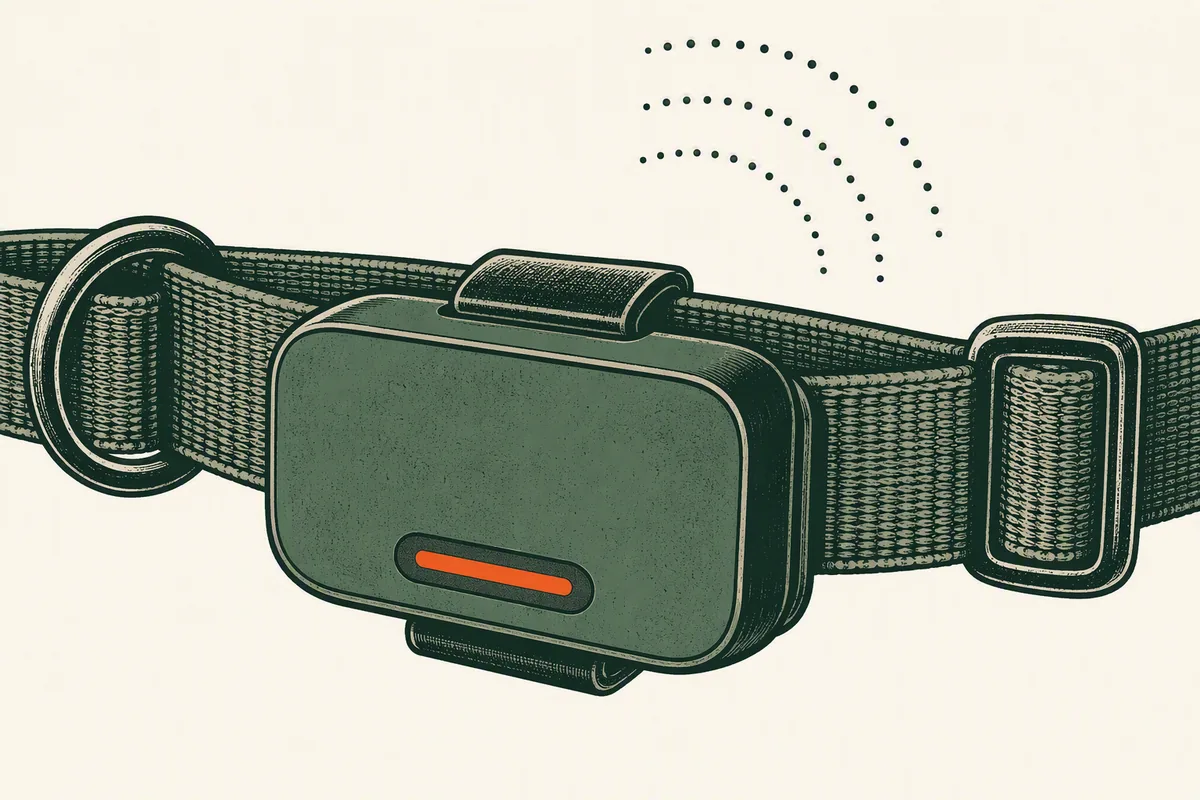
- Hard reset the tracker. Put it on the charger, press the power button ten times in a row, and watch for a blue LED flash followed by another colour. Wait one minute, then press the power button for one second to turn it on. Tractive confirms this clears software glitches without deleting data.
- Repeat the ten-minute outdoor live-tracking walk, and write down the date and time. This is your evidence either way.
- If it still fails, press the power button once and note the LED colours. The DOG 6 lights two LEDs, and the colour combination tells Tractive's support team what state the hardware is in. Contact support with the colours and your test times, and leave the tracker switched on so they can read it remotely.
The power saving zone, explained
The power saving zone causes more false alarms than everything else combined. It makes a healthy tracker look frozen by design. Here is how it actually works, per Tractive's own documentation. You link the tracker to a trusted Wi-Fi network, typically home or work. Whenever the tracker detects that network, it assumes the dog is somewhere safe and stops reporting GPS positions entirely to save battery. The app shows the zone's position, not a live fix. The moment the dog moves out of Wi-Fi range, the tracker wakes and resumes normal GPS reporting. You can set up to five zones per tracker.
So a Tractive stuck in a power saving zone usually is not stuck at all. It is obeying instructions. Genuine stuck cases do happen at the edges, though. If the app shows your dog at home while it is trotting round the park, the likely causes are a Wi-Fi network that reaches further than you think, or the tracker briefly re-sniffing the zone network at the boundary. Two fixes: start live tracking, which forces GPS reporting immediately, or temporarily delete the zone in the app and watch whether normal updates resume. If deleting the zone fixes it, recreate the zone and accept the occasional boundary wobble. Running with no zone at all costs you real battery life.
Setup failures are their own category. The zone only works on 2.4 GHz Wi-Fi that supports the old 802.11b standard. A 5 GHz-only router, or one broadcasting both bands under a single name, may never be detected. Tractive specifically notes that FRITZ!Box routers often need their default settings changed. Giving the 2.4 GHz band its own network name usually solves it. If your Wi-Fi cannot be made compatible, Tractive sells a Base Station that broadcasts a small dedicated network purely for this feature. It does not connect to the internet or extend your Wi-Fi.
What update speed you should actually expect
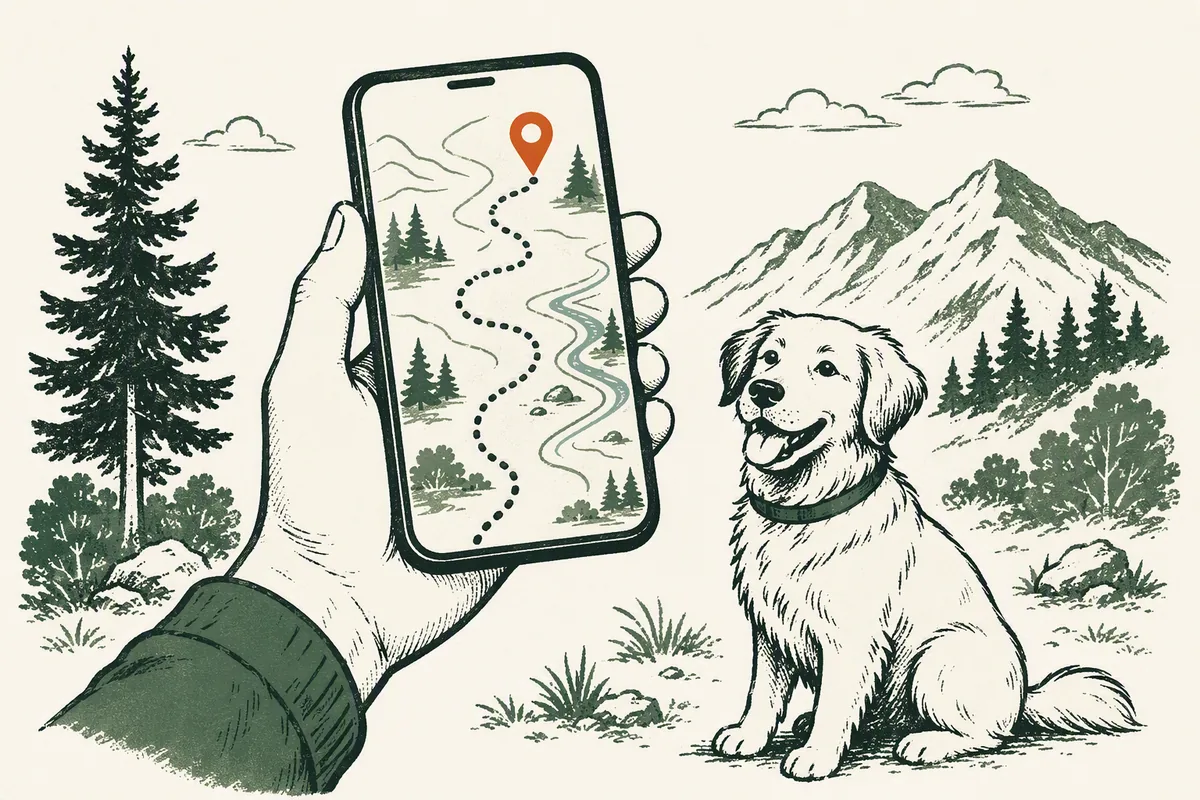
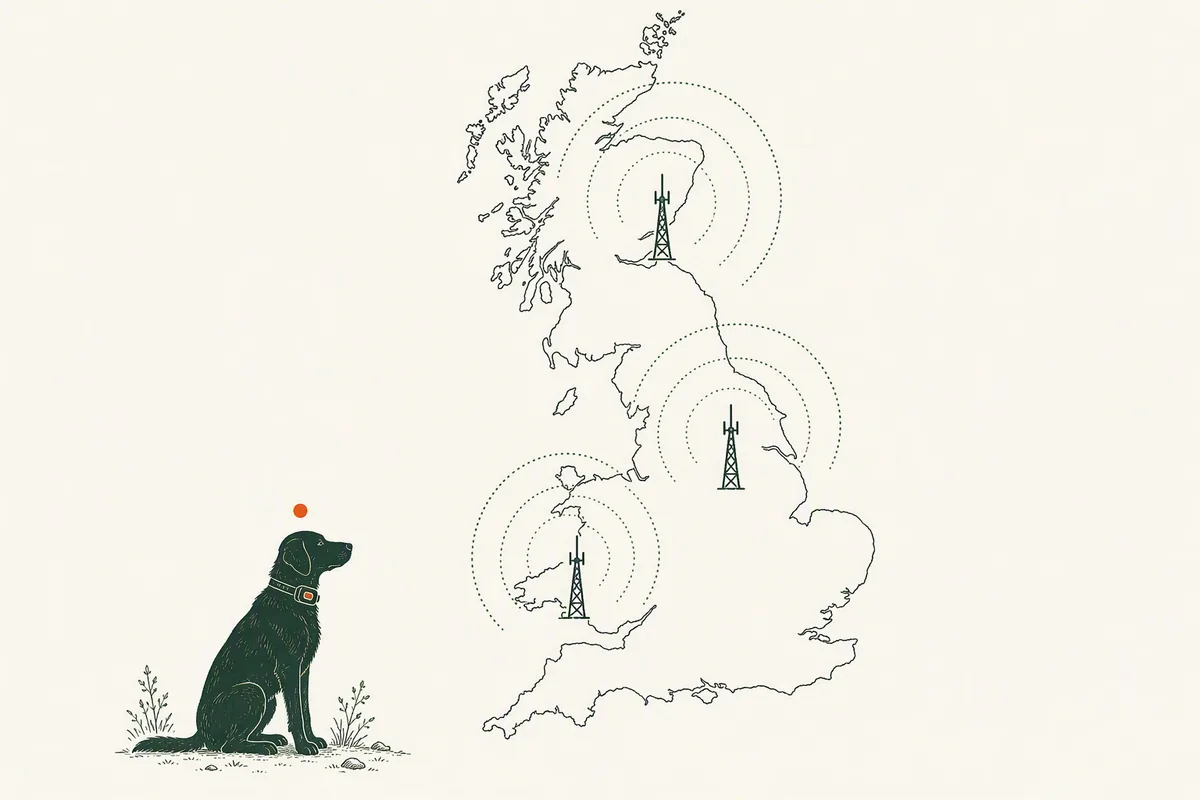
Some "not updating" complaints are really mismatched expectations, so it is worth stating what normal looks like. A Tractive is not a continuous broadcast. In everyday mode it reports periodically, more often when the dog is moving, and it deliberately goes quiet in a power saving zone. Live tracking is the continuous mode, and Tractive's stated rate for it is a position every two to three seconds. Indoors, expect gaps. GPS signals are blocked by walls and roofs. That is physics, not a fault. In mobile dead spots the tracker cannot send anything, but it keeps recording, and Tractive confirms the stored positions upload to your location history once it reconnects, so gaps often backfill themselves.
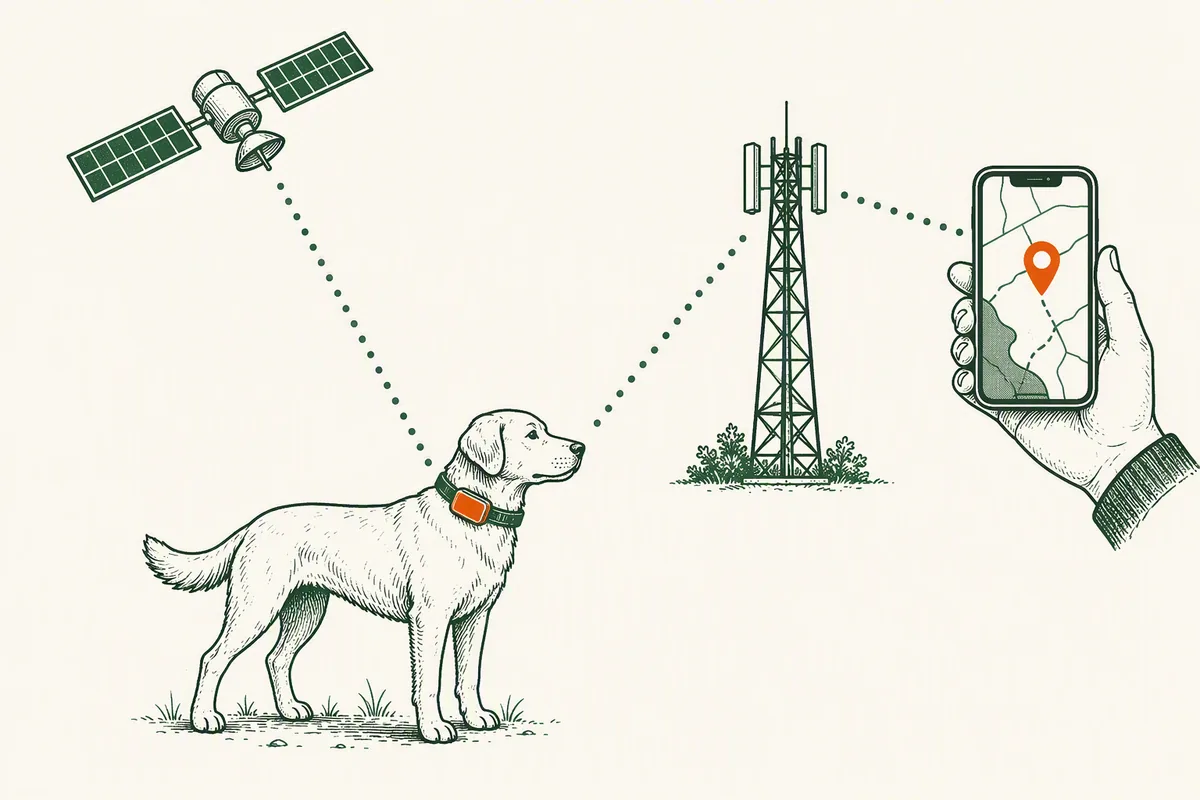
If you want the fuller picture of why any GPS tracker behaves this way, from satellite fixes to cellular backhaul, our explainer on how dog GPS trackers work covers it without the marketing gloss.
When it is a defect, not a setting
Here is the clean line between troubleshooting and a warranty claim. Your tracker is defective, not misconfigured, when all of the following are true at once: the subscription is active, the battery is fully charged, you have done the hard reset, you are outdoors in an area with mobile coverage, and a ten-minute live-tracking walk still produces no fresh positions. At that point, more fiddling will not save it.
Keep your evidence: the dates and times of failed outdoor tests, screenshots of the status screen, and the LED colour combination from a single button press. Then act on your rights rather than waiting on a support queue. UK buyers can reject a faulty unit within 30 days of delivery for a full refund under the Consumer Rights Act 2015, and the claim goes to the retailer you bought from, not the manufacturer. The full returns process, plus every other verified complaint theme and its fix, is in our companion guide to Tractive problems.
Questions owners actually ask
Why is my Tractive not updating location?
A Tractive that is not updating is usually resting in a Wi-Fi power saving zone, sitting indoors where GPS signals cannot penetrate, out of mobile coverage, or running on a lapsed subscription. Charge it, check the plan, then walk outdoors for ten minutes with live tracking on. A healthy tracker will start reporting.
What is a Tractive power saving zone?
A Tractive power saving zone is a trusted Wi-Fi network, such as your home router, that tells the tracker your dog is somewhere safe. While the tracker detects that network it stops reporting GPS positions to save battery, and the app shows the zone location. It needs 2.4 GHz Wi-Fi supporting 802.11b.
How do I get my Tractive out of a power saving zone?
A Tractive leaves its power saving zone automatically once it stops detecting the trusted Wi-Fi network. To force it, start live tracking from the map screen, or move the tracker beyond Wi-Fi range. If it stays stuck, delete the zone in the app to test, then recreate it, because running without one shortens battery life.
How often does a Tractive tracker update?
A Tractive tracker reports periodically in everyday mode, more frequently when the dog is moving, and pauses entirely inside a power saving zone. In live tracking mode, Tractive states it reports a position every two to three seconds. Positions recorded while out of mobile coverage upload to your location history once the tracker reconnects.